 Help Center
Services
A store can configure services to define the types of orders it supports. Each service corresponds to a specific order type. There are five distinct order types available:
| Order Type | Description |
|---|---|
| Collection | Customers place an order and pick it up directly from the store. |
| Delivery | Orders are transported from the store to the customer's specified address. |
| Catering | Large orders delivered to the customer's address, typically for events or parties. |
| Curb-Side | Customers drive to the store and collect their order without leaving their vehicle. |
| Eat-In | Enables QR code table ordering for customers dining within the store. |
Step-by-Step Guide to Configure Your Services
Configure Services
Make sure you are in the Location View and have selected the correct location. Then navigate to Services in the left navigation bar.
Click the Add Service button in the top right corner. The Add Service form will open where you can configure the service your store offers.


Complete the following fields:
Order Type – Select the order type you wish to configure.
Max Order Time (in minutes) – The time required to process an order. This applies to:
- Delivery and Catering: time for delivery
- Collection and Curb-Side: time to pick up
- Eat-In: time to be served at the table
Minutes Before Closing Time – The cut-off time in minutes before the store stops accepting orders for this service.
ASAP – Toggle on to accept As Soon As Possible orders, allowing customers to request their order for the earliest available time based on the Max Order Time setting.
Active – Must be toggled on for this service to be live and available to customers.
Enable Tips – Toggle on to allow customers to leave a tip when placing an order.
Enable Current Day Pre-Orders – When enabled, customers can schedule orders for later the same day. If disabled, customers will not be able to place scheduled orders for the current day.
Enable Current Day Pre-Orders During Closing Hours – When enabled, customers can place a scheduled order for the current day even during your closing hours.
Once all fields are filled in, click Save.
How to Configure Your Pre-Order Settings
Once your services are set up, you can configure pre-ordering for each one. Pre-orders allow customers to schedule orders in advance — whether it's a delivery planned for later the same day or a large order for the following week.
Step 1 – Open the Service
Find the service you wish to configure pre-orders for and click the Edit button.

Step 2 – Enable Current Day Pre-Orders
Before configuring pre-order settings, make sure the Enable Current Day Pre-Orders toggle is turned on within the service form. Without this, the pre-order settings will not take effect.
Step 3 – Configure Pre-Ordering Settings
Scroll down within the service form and you will find the Configure Pre-Ordering Settings section.
Click the + Add Pre Ordering button next to the section title to expand the pre-order configuration fields.


Complete the following fields:
Time Slot Interval – Set the duration of each time slot (e.g. 15 or 30 minutes). This spaces out orders and helps manage your kitchen flow. For example, a customer selects a delivery slot from 4:00 PM to 4:30 PM.
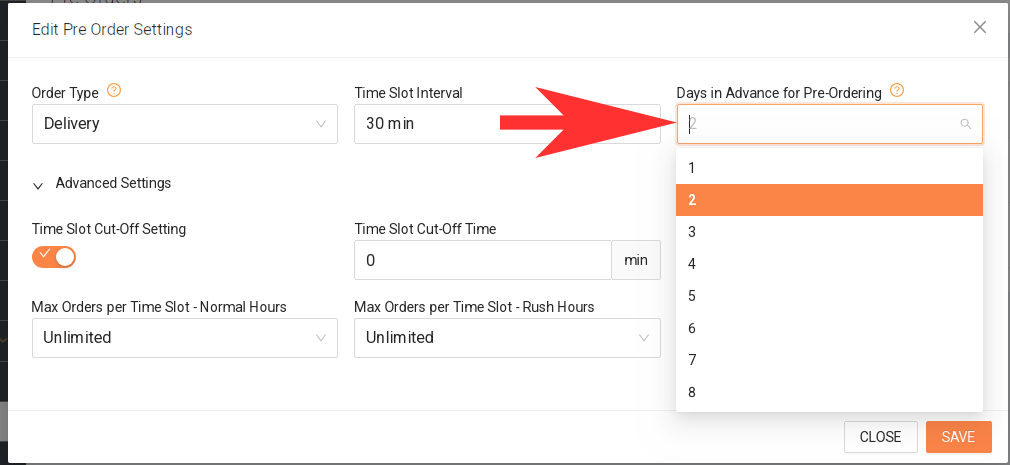
Days in Advance for Pre-Ordering – Define how far ahead customers can place orders. A value of 1 allows same-day pre-orders only. A value of 2 means customers can order today for the next day or beyond. We recommend keeping this set to 1 to avoid customers missing the scheduled order date when placing their order.
Time Slot Cut-Off Setting – Toggle on to stop accepting pre-orders at a specific cut-off point before the time slot begins.
Time Slot Cut-Off Time – Set the buffer time in minutes before a time slot closes. For example, setting 30 means orders must be placed at least 30 minutes before the selected slot.
Start Time for First Time Slot of the Day – Set a buffer from store opening to when the first time slot becomes available. For example, if your store opens at 9:00 AM but delivery starts at 9:30 AM, set this to 30.
Max Orders per Time Slot – Normal Hours – Set the maximum number of orders accepted per time slot during regular hours. Set to Unlimited if you have no restrictions.
Max Orders per Time Slot – Rush Hours – Set a lower limit during peak hours to avoid overloading your kitchen. For example, limit delivery to 2 orders per slot when eat-in demand is at its highest.
Step 4 – Save
Once all settings are configured, click Save. Repeat this process for each service you wish to enable pre-orders for.
How to turn off Orders on closing days
When closing for the day, it is more effective to turn off services. Rather than adjusting the opening hours.
How to turn off Orders on closing days
When closing for the day, it is more effective to turn off services. Rather than adjusting the opening hours.
To do this, simply log in to the Dashboard and navigate to Services, then click the Edit button.
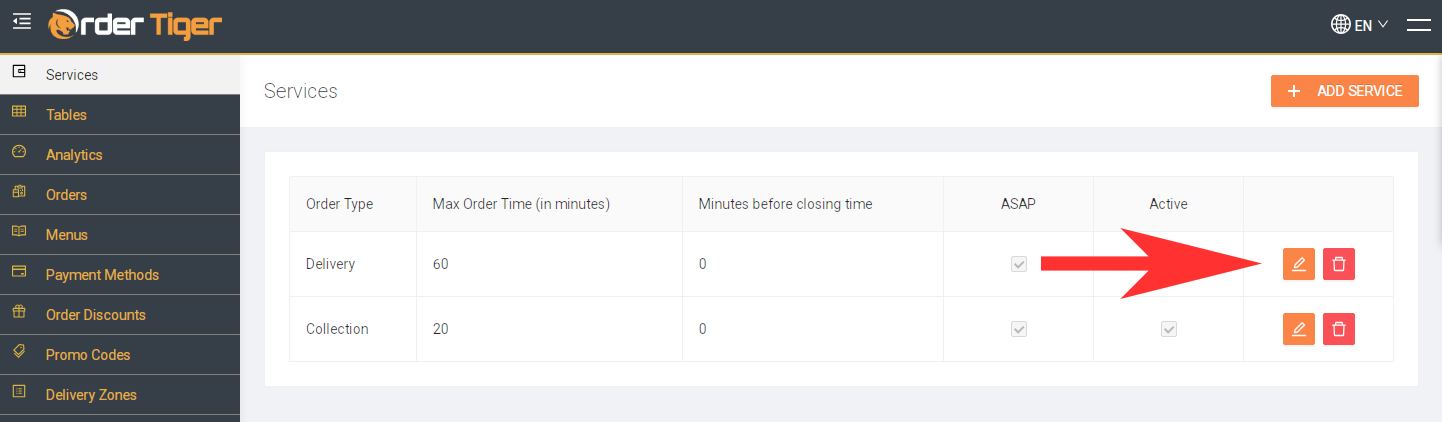
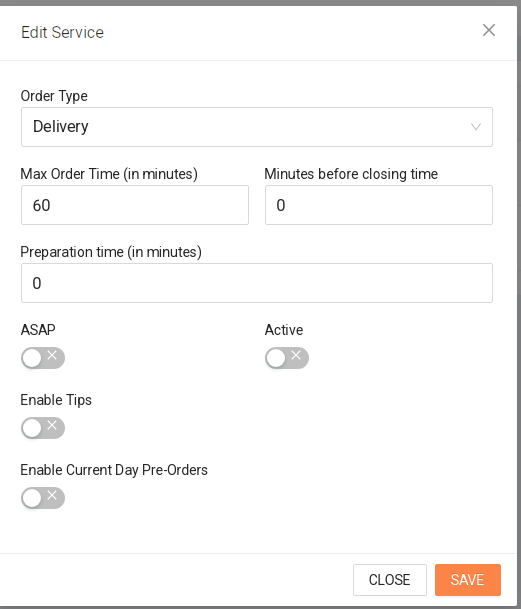
From there, you can disable the following options:
- ASAP Orders
- Active (Pre-orders)
- Enable Current Day Pre-Orders
- Enable Current Day Pre-Orders During Closing Hours
Disabling all of these options will prevent customers from placing any orders. Please note that this must be done for both collection and delivery.
One issue we often encounter is that when pre-orders are left active, some customers may not notice the scheduled order date shown in the top-right corner.
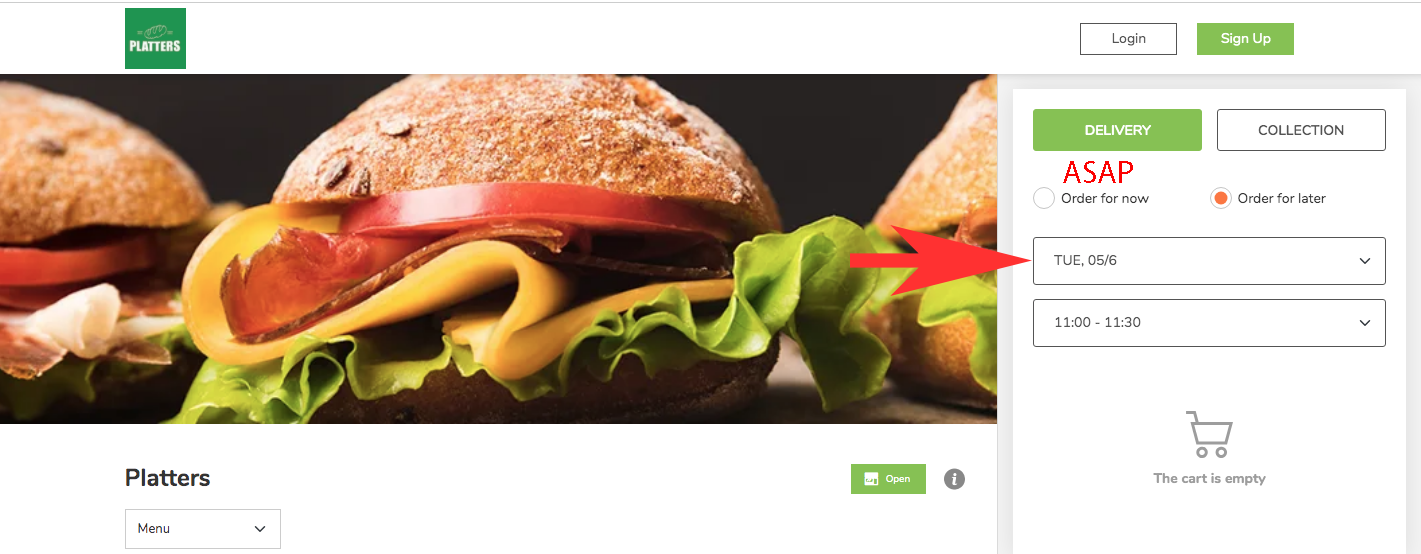
To avoid this confusion, we recommend disabling next-day pre-orders and only allowing pre-orders for later the same day.
To do this, simply log in to the Dashboard and navigate to Pre Orders, then click the Edit button for Delivery/Collection.
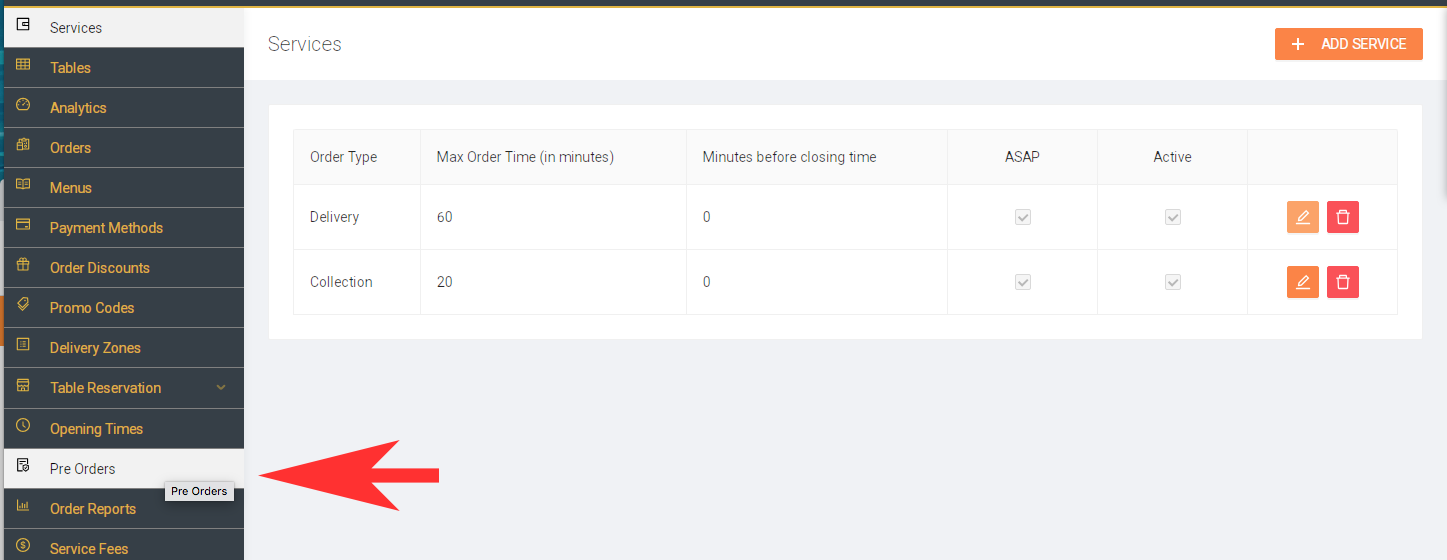
Update the value for "Days in Advance Pre Orders" to 1
Your Next Steps
-
Custom Operating Hours: Set independent opening hours for COLLECTION, DELIVERY, CATERING, CURB-SIDE or EAT-IN, tailored to your needs. See the Opening Times section.
-
Monitor Order Timings: Regularly review your maximum order and preparation settings to ensure your staff has enough time for smooth operations. Orders